

Last Updated: October 29, 2026
Quick Summary
To integrate smart lighting systems, connect your bulbs, switches and sensors onto one network under a single control app, choosing either a hub for low-power devices or hub-free Wi-Fi bulbs. Pick one protocol, confirm your Wi-Fi and switches support it, then group lights by room and build scenes.
- Pick a hub if you plan to add sensors, switches or more than a handful of lights.
- Many smart bulbs connect on the 2.4GHz band rather than 5GHz, so check router settings if one won't connect.
- Setting up smart lighting scenes takes about ten minutes per room once devices are connected.
- Automate three or four routines, not thirty, and leave one lamp on a plain switch per room.
- Most connectivity problems trace back to wrong Wi-Fi band, weak signal, a dropped device or firmware mismatch.
Table of Contents
- What You Need Before You Integrate Smart Lighting
- Step-by-Step: How to Set Up Smart Lighting Scenes
- Best Smart Home Hubs for Lighting
- Smart Lighting Automation Best Practices
- Troubleshooting Smart Light Connectivity
- Build Your Smart Lighting Setup with Ash and Anthem
- Frequently Asked Questions
What You Need Before You Integrate Smart Lighting
Most people buy smart bulbs first and figure out the plumbing later. That order is backwards, and it's why so many homes end up with three apps and a hallway light that only works when the Wi-Fi feels like it. Learning how to integrate smart lighting systems properly starts with two decisions you make before you buy anything.
Smart lighting integration is the process of connecting bulbs, switches, sensors and a control app onto one network so they respond to a single set of rules. Get the network right and everything after it is simple.
Here's the short version of what actually matters:
- One protocol, not five. Zigbee, Matter, Thread and plain Wi-Fi don't always talk to each other.
- A control point. Either a hub that speaks to low-power devices, or bulbs that connect straight to your router.
- A stable signal. Smart bulbs are only as reliable as the Wi-Fi they sit on.
Below, we'll show you how to avoid that problem.
Pick a Hub or Go Hub-Free
A hub is a small box that bridges low-power devices to your home network. Zigbee bulbs, sensors and switches use very little power, so they can't talk to your router directly. The hub translates for them.
Hub-free bulbs skip that step. They connect over Wi-Fi and each one holds its own connection.
Which should you choose?
- Pick a hub if you plan to add sensors, switches or more than a handful of lights.
- Go hub-free if you want three bulbs in one room and nothing more.
The trade-off is real. Hubs add one more device to plug in, but they keep your Wi-Fi network clear. A dozen Wi-Fi bulbs is a dozen devices competing for bandwidth. If you're leaning toward a hub, you can explore the Zigbee smart gateway to see whether it fits the devices you already own.

Check Your Wi-Fi and Switches
Two checks save hours of frustration.
Wi-Fi: Many smart bulbs connect on the 2.4GHz band rather than 5GHz. Check your router settings if a bulb won't connect. If your bulb won't connect during setup, this is almost always why.
Switches: A smart bulb needs constant power. A standard wall switch cuts it. That means the switch has to stay on, which defeats the point of having a switch.
The fix is a smart switch or a bulb that remembers its last state after a power cut. Check the product details before you buy. Not every bulb does this.
Step-by-Step: How to Set Up Smart Lighting Scenes
A scene is a saved set of light settings you trigger with one tap or one voice command. "Movie night" dims the room to 20%. "Morning" brings it up warm and slow.
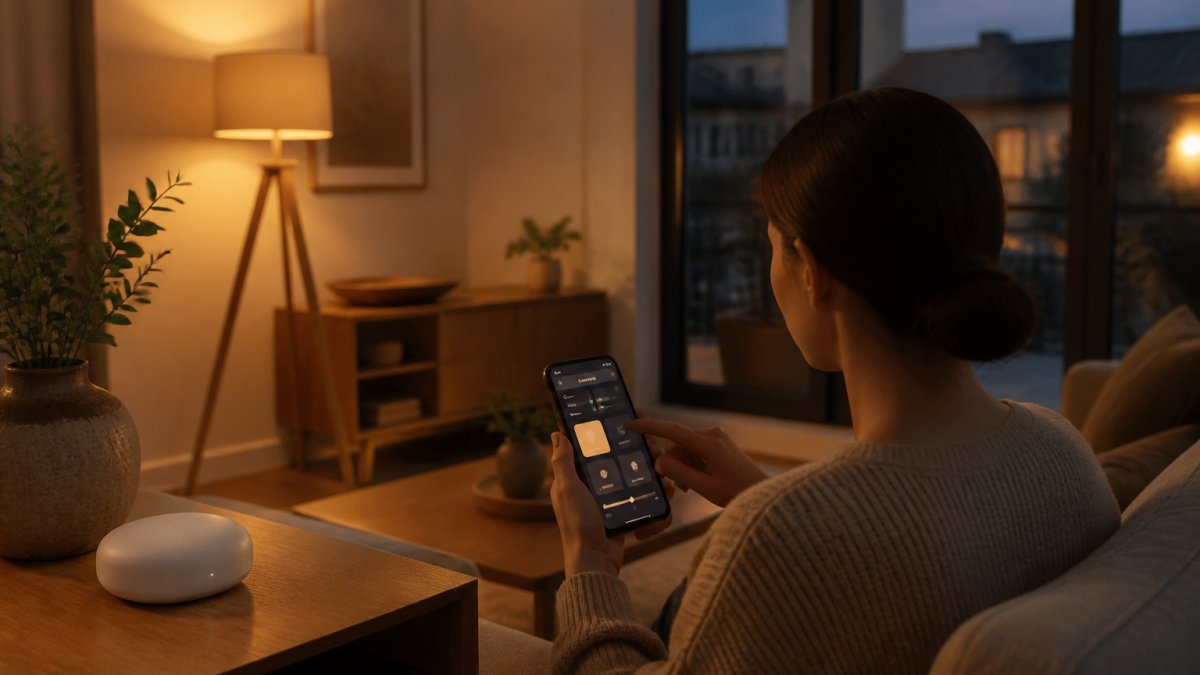
Here's the sequence we'd follow:
- Connect every light to the app. Name each one by room, not by number. "Hallway" beats "Light 3."
- Group lights by room. Most apps let you control a group as one unit.
- Create your first scene. Set brightness and colour temperature for each light, then save it.
- Add a trigger. A schedule, a sensor, or a voice command.
- Test it at the time of day you'll use it. A scene that looks right at noon often looks wrong at 9pm.
If you want motion-triggered lighting without wiring, browse the motion sensor night lights we stock. They switch on as you pass and recharge over USB, so they suit hallways and stairs where a fixed switch is awkward.

Best Smart Home Hubs for Lighting
The best smart home hubs for lighting are the ones that speak the protocol your bulbs use and support the app you'll actually open. There's no universal winner, because the right answer depends on what you already own.
Two broad camps cover most homes.
Zigbee and Matter Hubs
Zigbee hubs handle low-power devices: bulbs, sensors, switches, buttons. They form a mesh, so each powered device extends the network. That makes them reliable across a whole house.
Matter is the newer common language. It lets devices from different makers work together without a manufacturer-specific hub (Build With Matter). Support is improving, but not every device on sale today carries it.
Best for: homes adding sensors, switches or lighting across multiple rooms.
Ash and Anthem Delighted- Zigbee Smart Gateway Zigbee Wireless Hub →
Skip if: you want two bulbs in a rental and nothing else.
Hub-Free Wi-Fi Bulbs
Wi-Fi bulbs connect straight to your router. No extra box, no extra app layer. Setup is usually a few minutes per bulb.
The limit shows up at scale. Every bulb is another device on your network, and a router handling a laptop, a TV and a dozen bulbs starts to struggle.
Best for: small setups, single rooms, renters.
Skip if: you're planning whole-home automation.
| Option | Setup effort | Scales well? | Best for |
|---|---|---|---|
| Zigbee hub | Medium | Yes, mesh grows | Multi-room homes |
| Matter hub | Medium | Yes, cross-brand | Mixed-brand devices |
| Wi-Fi bulbs | Low | No, one device each | Single rooms |
Smart Lighting Automation Best Practices
Good smart lighting automation best practices come down to one idea: automate the routine, leave the rest manual. A house that lights itself at every turn feels less like a home and more like an office.
What works in practice:
- Automate three or four routines, not thirty. Morning, evening, night, away.
- Use warm light after dark. Cool white at 10pm wakes you up.
- Set a fade, not a snap. A two-second ramp is gentler than an instant jump.
- Keep a manual override. Guests and family members shouldn't need the app.
- Test the away scene before you leave. A light that stays on all day is a giveaway.
Watch out: automating every bulb removes the wall switch from the equation. If your app goes down, so does your light. Leave one lamp on a plain switch in each room.
For outdoor automation, solar pathway lights need no wiring and no hub, which makes them the simplest place to start.
Troubleshooting Smart Light Connectivity
Most connectivity problems trace back to four causes: wrong Wi-Fi band, weak signal, a device that dropped off the mesh, or a firmware mismatch. Work through them in that order.
Quick fixes that solve the majority of cases:
- Move the bulb closer to the router during setup, then relocate it.
- Power-cycle the bulb at the switch, not just in the app.
- Check the 2.4GHz network name and connect to it directly.
- Re-add the device rather than troubleshooting it in place.
- Update the hub firmware before adding new devices.
Common Mistakes to Avoid
A common mistake is mixing protocols and expecting them to cooperate. Zigbee devices generally need a Zigbee hub to connect to your network.
The second mistake is buying on price alone.
The third is skipping the network check. If your router merges 2.4GHz and 5GHz under one name, setup will fail and you'll blame the bulb.
Build Your Smart Lighting Setup with Ash and Anthem
Start with one room. Get the hub, the bulbs and the scene working, then expand. That's the approach that avoids the drawer full of abandoned gadgets.
If you're still weighing the investment, our guide on whether smart home gadgets are worth it in 2026 covers the practical side before you spend.
At Ash and Anthem, we offer a curated selection across lighting, smart home and decor. Our Zigbee gateway is designed to connect compatible Zigbee devices so you can control them from your phone. Our motion sensor night lights are USB rechargeable.
Get started with Ash and Anthem and build a lighting setup that works as one system, not five.
Frequently Asked Questions
Do I need a hub to integrate smart lighting systems?
Not always. Wi-Fi bulbs connect directly to your router and are controlled through their own app, which suits a single room or a small flat. A hub becomes worth it when you want sensors, switches and bulbs from different brands to work together in one routine. A Zigbee gateway like the Ash and Anthem Delighted Zigbee Smart Gateway bridges compatible low-power devices to your home network, so you control them from your phone and link them into scenes instead of juggling separate apps.
How do I connect smart lights to my existing home Wi-Fi?
Screw in or plug in the bulb, open the manufacturer's app and follow the pairing prompt. Most apps ask for your Wi-Fi network name and password. Check the product details for the bands it supports. Keep the bulb within range of the router during pairing, then rename it by room so scenes are easy to build. If pairing fails, move the bulb closer to the router, retry, and check that your phone is on the same 2.4 GHz network.
Can I integrate smart lighting with voice assistants like Alexa or Google Home?
Yes, once the lights are set up in their own app you can link that account to Alexa, Google Home or Apple Home and control lights by voice. Check the product details for supported voice assistants before buying, because support varies by hub and bulb. After linking, group lights by room in the voice app so a single command such as turning on the kitchen lights works without naming each bulb.
What should I check first when troubleshooting smart light connectivity?
Start with the router: confirm the light is on the 2.4 GHz network and within range, then power-cycle the bulb and the hub. If a light drops off after working fine, re-pair it in the app and update its firmware. For Zigbee devices, check that the hub is online and that the device has not been moved too far from it. Most dropouts trace back to Wi-Fi band mismatch, distance or an unplugged hub.


